Setup
Set up Skonto Pay
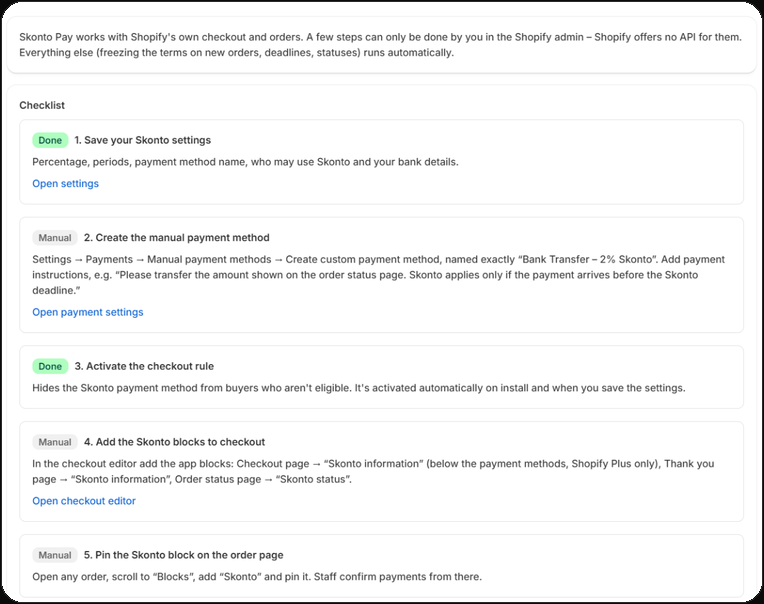
Skonto Pay works with Shopify’s own checkout and orders. A few steps can only be done by you in the Shopify admin – Shopify offers no API for them. Everything else runs automatically.
What you need
- A Shopify store in which you can create manual payment methods. You create the one for Skonto in step 2.
- For the text below the payment methods in checkout: checkout extensibility on Shopify Plus. The blocks on the thank-you page and the order status page work on all Shopify plans.
The steps
Install the app and save your settings
After installation the app opens on “Skonto orders”. Under “Settings” you set the Skonto percentage, the Skonto period, the payment term, the name of the payment method, who can use Skonto, and your bank details. The defaults are 2%, 7 days and 30 days.
Create the manual payment method
In the Shopify admin: Settings → Payments → Manual payment methods → Create custom payment method. The name must match the name in the Skonto settings exactly (default: “Bank Transfer – 2% Skonto”).
Add payment instructions for your buyers, for example: “Please transfer the amount shown on the order status page. Skonto applies only if the payment arrives before the Skonto deadline.”
Check the checkout rule
The rule hides the Skonto payment method from buyers who aren’t eligible. It is activated automatically on install and whenever you save the settings; the “Setup” page shows whether it is active.
Add the Skonto blocks in the checkout editor
In the checkout editor add the app blocks: on the Checkout page “Skonto information” (below the payment methods, Shopify Plus only), on the Thank you page “Skonto information”, and on the Order status page “Skonto status”.
Pin the Skonto block on the order page
Open any order in the admin, scroll to “Blocks”, add “Skonto” and pin it. Staff confirm payments from there.
Add the payment details to the order confirmation email
Settings → Notifications → Order confirmation → Edit code. On the “Setup” page choose the email language, copy the snippet and paste it where the payment details should appear, for example after the order summary. Only orders paid with the Skonto payment method show it.
The snippet contains your percentage, periods and bank details. If you change the Skonto settings later, copy it again and replace the old one in the template.
Check your B2B companies
Shopify hides manual payment methods for company locations with payment terms or “Submit orders as drafts”. Companies that should use Skonto need neither.
Check it with a test order
Place an order on the storefront and choose the Skonto payment method. The payment step shows what to pay and by when; the thank-you page shows the bank details. In the app the order appears under “Skonto orders” as “Active” within a few seconds.
With the default setting, only buyers purchasing for a B2B company see the payment method.
Confirm a payment
Open the order under “Orders” in the admin. In the “Skonto” block click “Confirm payment received”, enter the amount received and the value date shown on the bank statement, tick that you checked the bank account, and click “Apply Skonto and record payment”.
- Paid in time, with Skonto: the order total is reduced by the Skonto, the payment is recorded with its actual date and the order is marked as paid.
- Full amount received: the payment is recorded without Skonto.
- Received after the Skonto deadline: the Skonto has expired; of the reduced amount, the remainder stays outstanding.
- Amount doesn’t match: the app changes nothing and shows which amount is expected with and without Skonto.
What runs automatically
New Skonto orders get their terms within seconds. The app checks the deadlines once a day, shortly after midnight in your shop’s time zone: Active → Skonto expired → Overdue.
The settings at a glance
- Skonto
- Above 0 and up to 10%, at most two decimals. Default: 2%.
- Skonto period
- Whole days between 1 and 90. Default: 7 days.
- Payment term
- Whole days between 1 and 365, not shorter than the Skonto period. Default: 30 days.
- Calculation
- The basis is the final order total including shipping and taxes. Deadlines end at 23:59 on the last day in the time zone you set.
- Changes
- Apply to orders placed after saving. Existing orders keep their terms.
- Who can use Skonto
- B2B companies only (recommended), B2B companies and logged-in customers, or everyone, including guests. Outside B2B you first acknowledge the risk of unpaid orders.
- Safeguards for consumers
- Maximum number of unpaid Skonto orders per customer, automatic cancellation of unpaid orders after a number of days, minimum and maximum order total.
- Bank details
- Shown on the thank-you page and the order status page. Unlike the terms they are not frozen – a change also shows on existing orders.
Help
Questions or help with the setup: info@shop-fabrik.net
Skonto in Shopify. No workarounds.
Skonto Pay is coming to the Shopify App Store soon. Questions about the app or the setup before then? Write to us.